NextGen Home
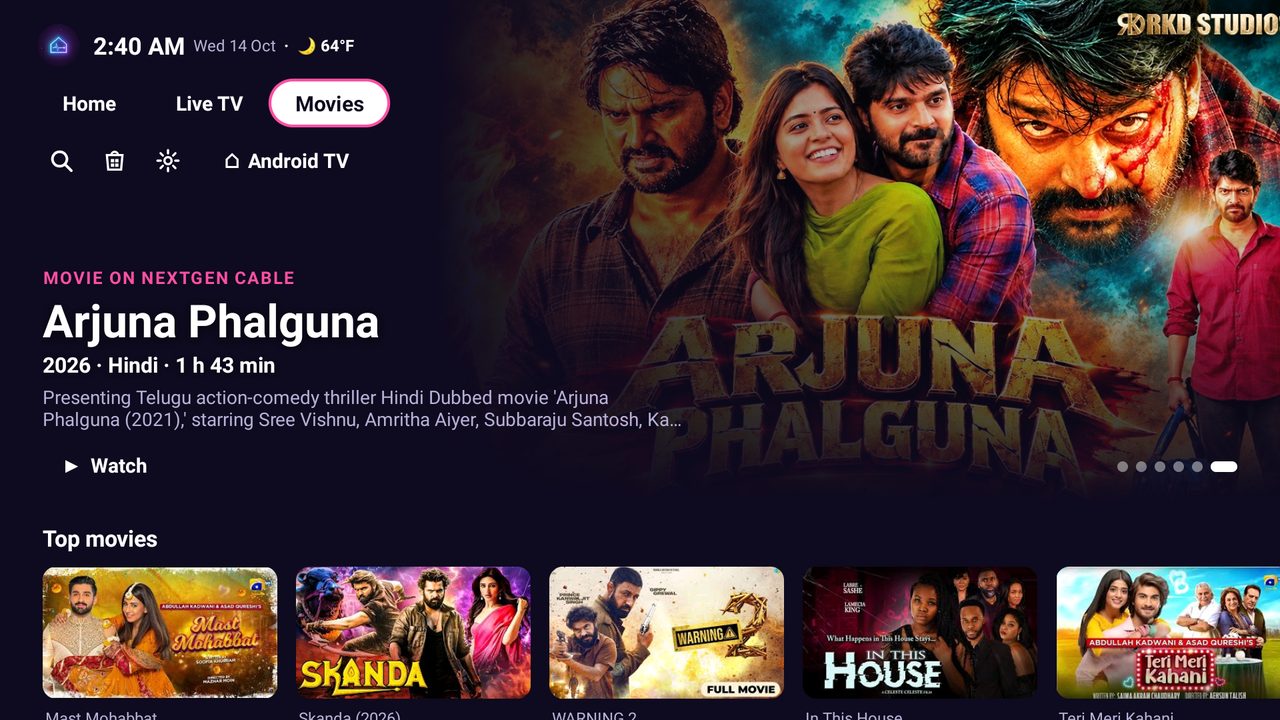
Google TV-style home: big picture banner, movie rows, apps from AppHub
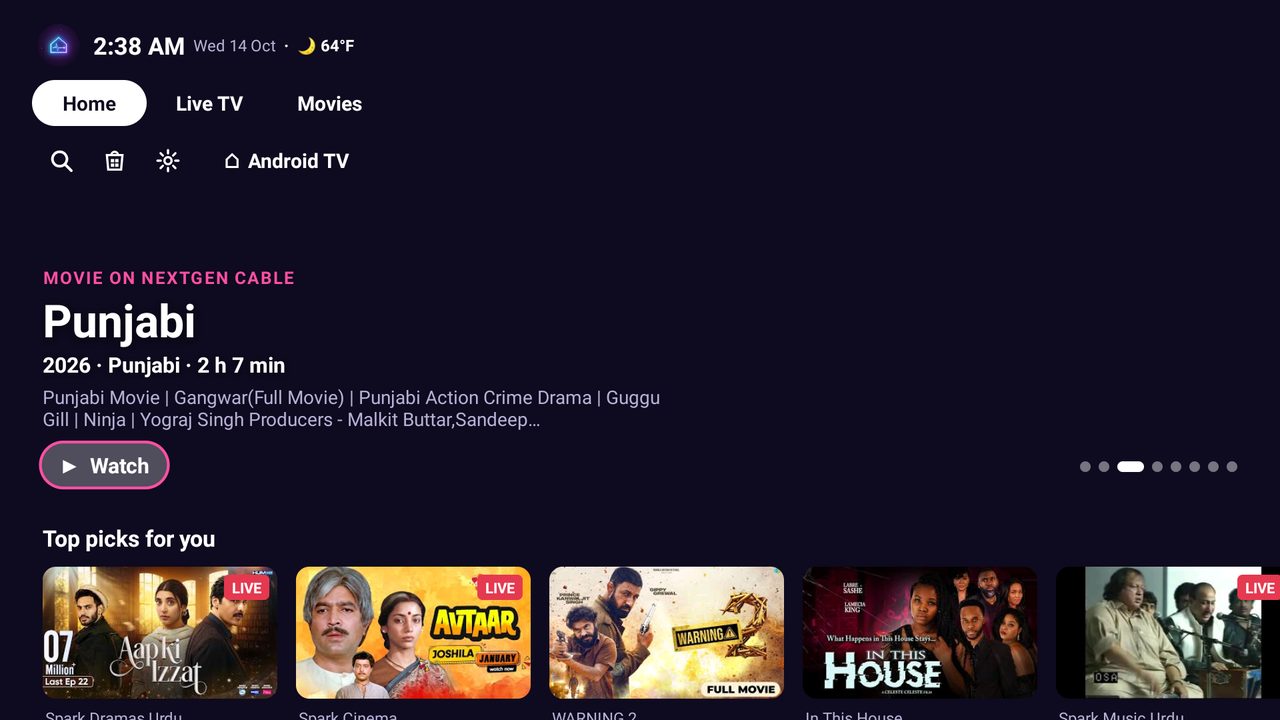
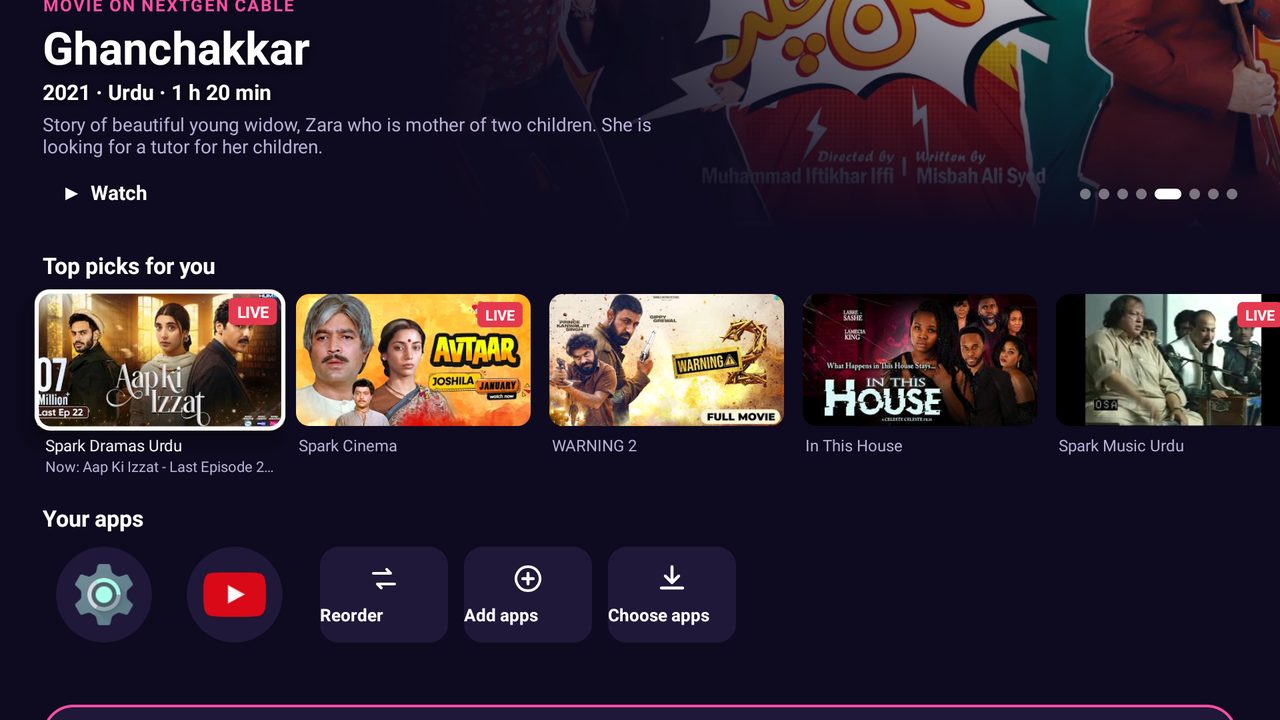
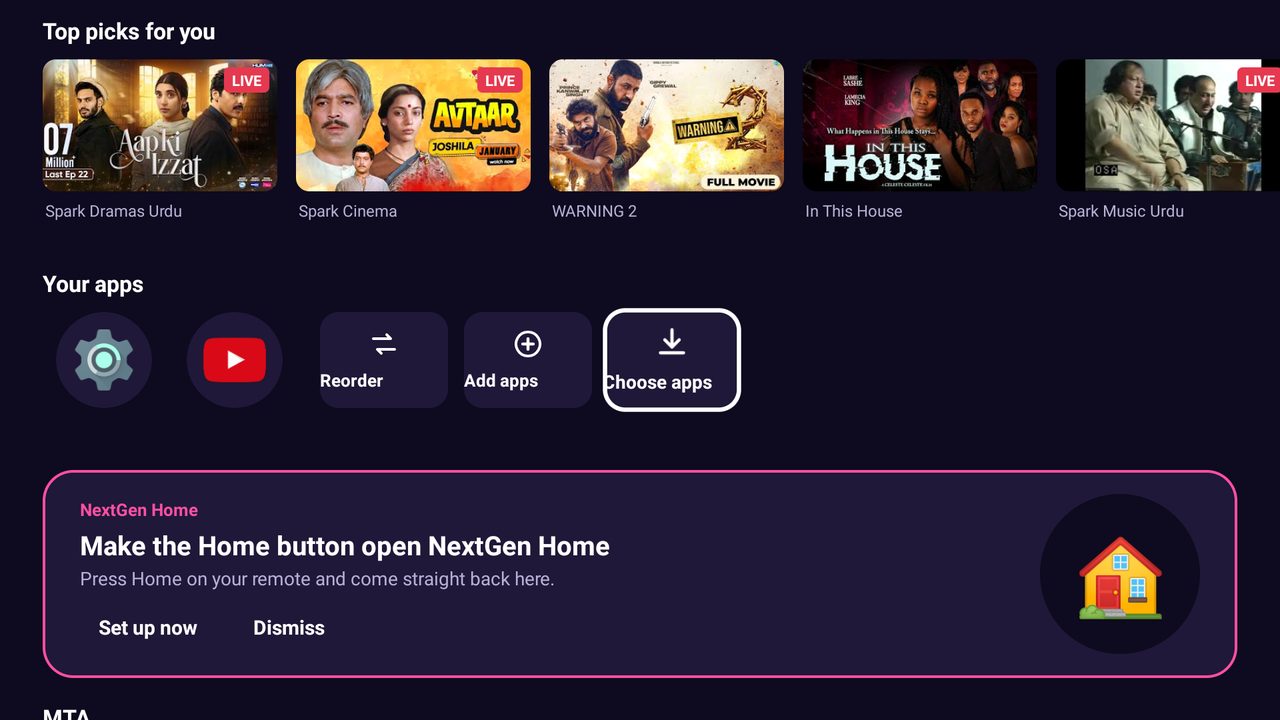
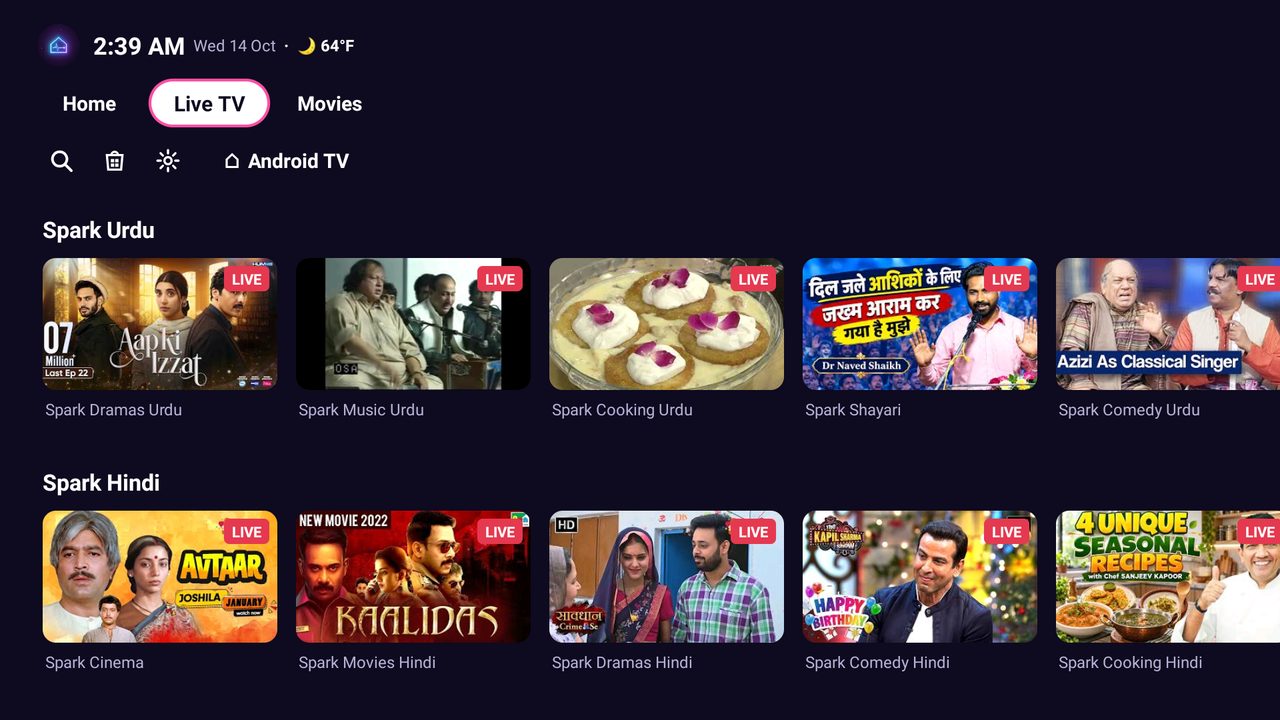
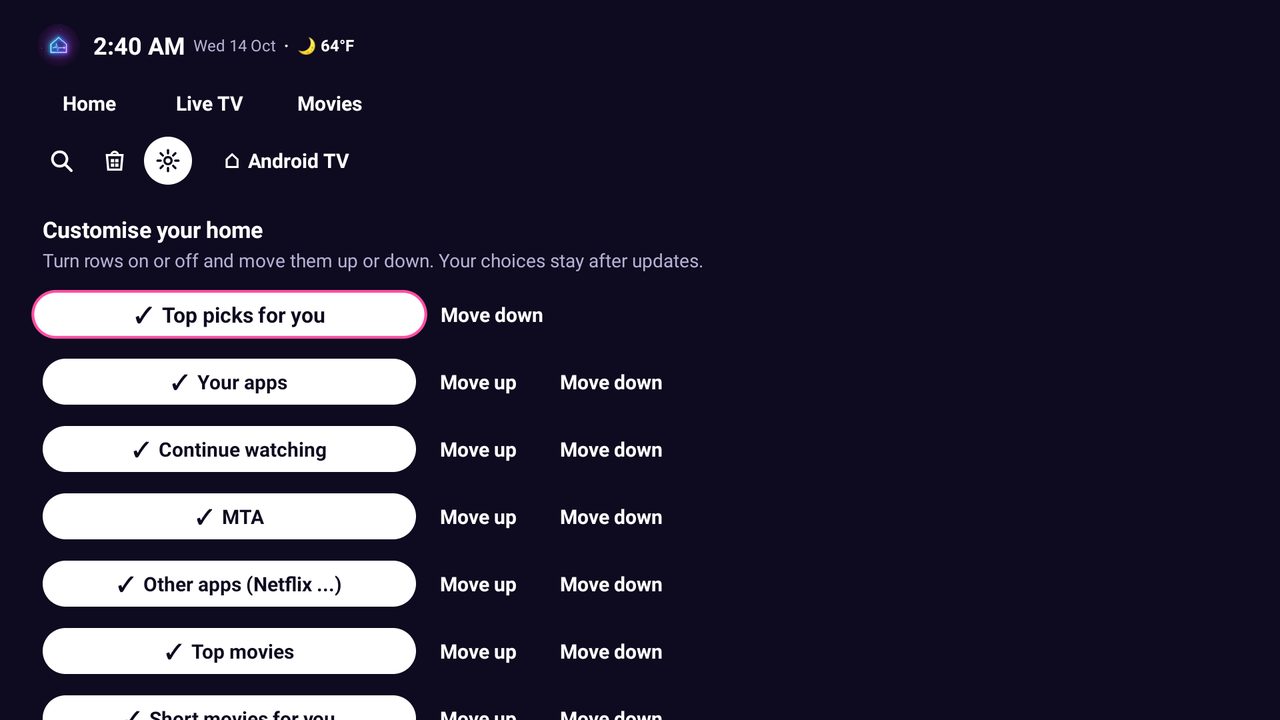
Your TV's home screen, made by us in the style of Google TV. A big picture banner shows what's on, and rows of top picks, films, dramas, trailers and live channels sit right under it, ready to play in NextGen Cable. All your apps are in one row, and new ones come from AppHub. Choose which rows you see and in what order, pick a theme, and see the time, date and weather at the top.
Features
- Big picture banner with what's on now
- Rows of top picks, films, dramas, trailers and live TV
- Your apps in one row, more from AppHub
- Continue watching with progress bars
- Customise home: rows on or off and in any order
- Clock, date and weather at the top; four colour themes
Use it on your computer
Turn any computer into a TV. Plug a TV or a second monitor into your laptop or desktop with an HDMI cable, and NextGen Home plays on that screen while you keep working on the other one. A small remote controls it from the sofa. A computer version of NextGen Home is on the way; the setup below is what it will use.
- Connect the TV or second monitor to your computer with an HDMI cable (a normal cable works up to about 7 m).
- On Windows, press Windows + P and choose Extend, so the TV becomes a second screen.
- For a laptop with the lid closed: Settings > System > Power > Lid and power button controls, set "When I close the lid" to "Do nothing".
- Plug the remote's small USB receiver into the computer. It works at once, no setup.
- Open NextGen Home on the TV screen. Arrows move, OK opens, Back goes back.
Remotes we recommend
Our first pick (for example WeChip W1). Works on Windows at once: point to move, OK, Back, Home, volume, and a keyboard on the back.
Best for typing searches and sign-ins (for example Rii i8+).
A small USB stick learns your TV remote, so one remote runs the TV and NextGen Home.
Our own phone remote app, with typing and voice search. Computer support comes with the computer version.
Works on Windows with no setup. Great for our games.
Arrow keys move, Enter is OK, Esc is Back.
Not recommended: old Windows Media Center remotes (some don't work on Windows 11), Logitech Harmony (no longer sold), and HDMI adapters for the TV remote (most computers don't support them).
Screenshots
What's new
- 1.1.3 2026-10-13
Rate this app: give stars and send us your ideas. You can skip it.